


Uploading Artwork Images
After logging in, click Portfolio 💼 to get started.
Click the Artwork Images tab and then click Upload Artwork Image.
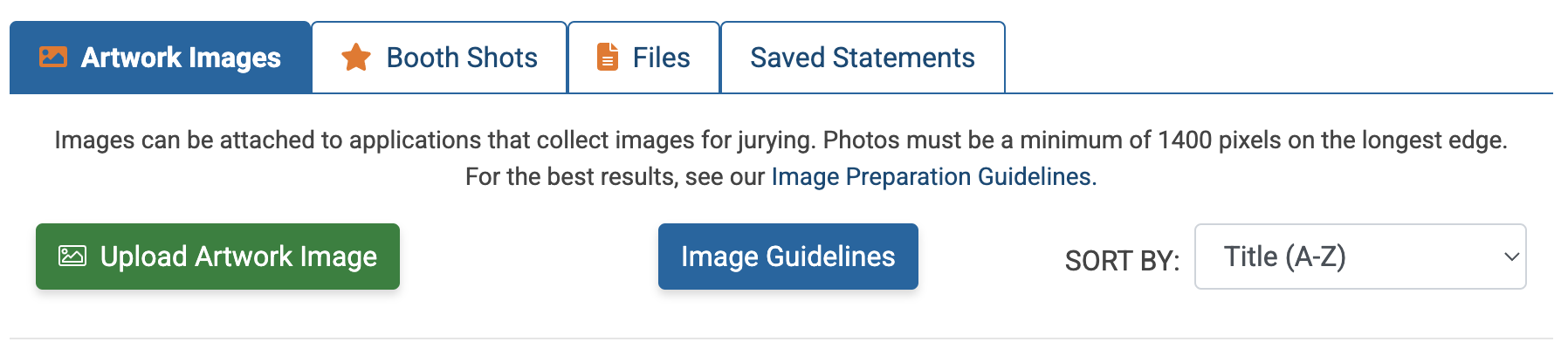
Click Browse in the media file field to upload an image from your computer or phone.
Fill in the required fields: image title, alternative text, price, height, width, and depth, and the artwork’s medium type.
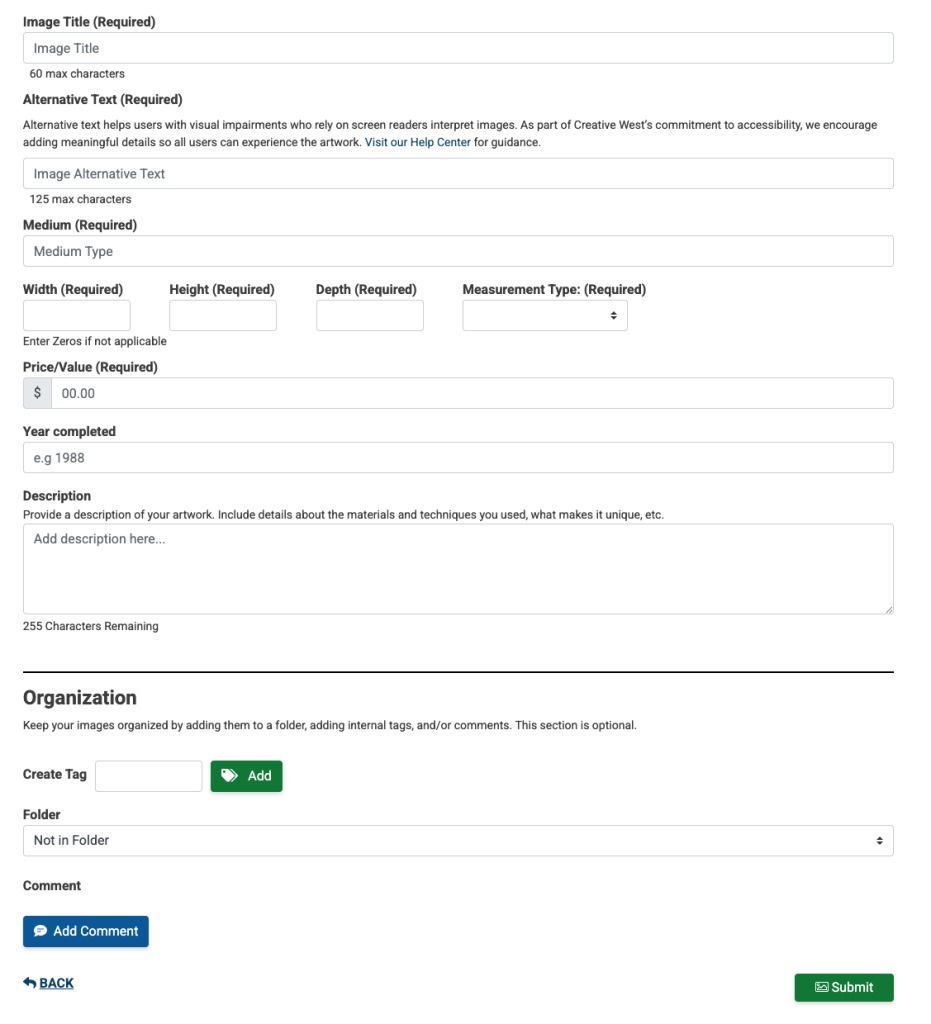
If desired, enter the year the artwork was completed, a short description, add a tag, add an internal comment, or add the image to a folder.
Click Submit to upload your image.
⚡ TIP: Check out the guide, Tips for Photographing Your Artwork.
💡 What is Alternative Text?
When uploading your artwork, you will be asked to enter alternative text. Alternative text, or alt text, is a brief written explanation of an image’s content. It allows screen readers to provide an audio description of the image for users who are blind or visually impaired. Providing clear and meaningful descriptions helps create a more inclusive and welcoming online environment.
Helpful Resources
Image Description Tool: Quickly generate a description for your image.
Alt Text Best Practices – Harvard: Learn how to write clear and helpful alt text, with examples.